
Assignment Assistant
Tips for uploading documents and images
When using Assignment Assistant (a.k.a. Talk Lab), you can share key documents or images if needed for a productive Coach conversation.
- Uploadable document files are:
.PDF,.TXT,.JPEG,.PNG,.GIF, and.WEBP. - Images can also be directly pasted from the system clipboard (details below).
File Uploads
To upload a file of any of the allowed file types, click on the plus (+) button next to the text entry box:
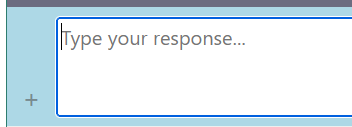
And search your local drive for the file. For .PDF or .TXT, if your document is long, your Coach will only have access to a summarized version of it.
For Word documents, Google documents, or websites, it is easy to convert them to a PDF by selecting Print. In the Print dialog box, for the destination choose Print to PDF rather than a printer.
Images
Images can be uploaded as files, e.g. as .jpg or .png files. In addition, a useful technique is to capture a region of your computer screen to your system clipboard, whether on Windows or Mac, and then paste the image directly into the Assignment Assistant’s text entry box.
In Windows, the most common approach is to use Snipping Tool to capture a screen region, or else Win + Shift + S.
More information:
https://support.microsoft.com/en-us/windows/apps/use-snipping-tool-to-capture-screenshots
On Mac, you can use the Screenshot app. Launch it with Shift + Cmd + 5.
More information:
https://support.apple.com/en-us/102646
In either case, after you have captured your screen region to the clipboard:
- In your browser, go to the Assignment Assistant web app.
- Click in the text entry box.
- Use the paste keyboard shortcut:
- Windows:
Ctrl + V - Mac:
Cmd + V
- Windows:
In the case of image uploads, again the Coach will only get access to a detailed text description of the image. In some cases, the description may not capture every detail in the image.
Other Notes
When you upload, you optionally may also type a comment or instruction in the text entry box. The upload does not begin until you click the Say button.
Generally, the time required to ingest a document or image will be somewhat slower than it is in a commercial chatbot like ChatGPT or Claude. Be patient.
You may not give the Coach an external URL to look up and read. Assignment Assistant does not support such functionality.
If there is a web page you want the Coach to look at, either:
- capture the relevant region of the web page and directly paste the image from your clipboard; or
- use the browser’s Print functionality to print the page to a PDF and then upload the saved file.